Reverse image search a manga on iPhone and Android
By Tahir Nazir Last updated
Screenshot the panel, crop it to one clean frame, and search it with Google Lens or SauceNAO. On iPhone and Android you can do all of it in the phone browser on MangaTrace, with nothing to install, or use the Lens button in the Google app or Chrome. Cropping out the status bar and speech bubbles matters more than which route you pick.
What is the fastest way on any phone?
Open MangaTrace in your phone's browser. It works the same on iPhone and Android, and you don't install anything.
- Take a screenshot of the panel, or save the image.
- Open mangatrace.its-tahir.com and tap the drop zone to choose the screenshot from your photos.
- Drag the crop box around one panel. Leave out speech bubbles and the phone's status bar.
- Tap the first suggested engine. Its results open in a new tab.
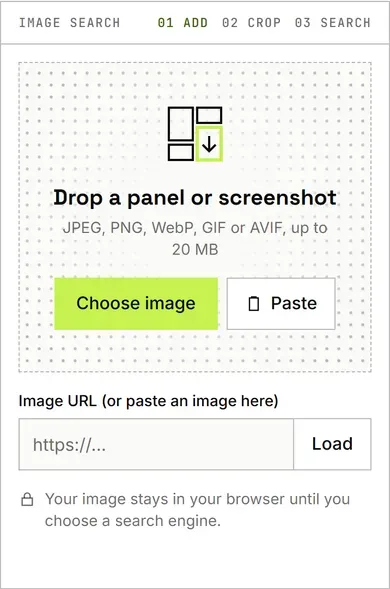
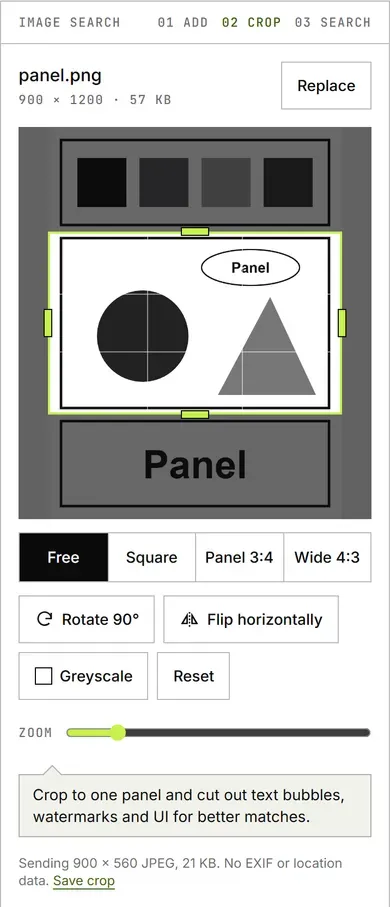
The crop runs on your phone. The image only leaves it when you tap an engine, and then it goes straight to that engine.
Before you search: take a good screenshot
- Open the image full size first. A screenshot of a small preview loses detail.
- Zoom in so the panel you want fills the screen, then screenshot.
- Wait for any buttons, captions or video controls to fade before you take it.
How to reverse image search a manga on iPhone
1. Screenshot and crop
- Press the side button and volume up together to take a screenshot.
- Open the screenshot in Photos and tap Edit.
- Choose the crop tool and drag the corners around one panel. Tap Done.
2. Search it
- In Safari, with MangaTrace: open the site, tap the drop zone, pick the screenshot, adjust the crop and tap an engine. This is the only way that gives you SauceNAO, IQDB, Yandex and Bing as well as Lens.
- In the Google app: tap the Lens icon in the search bar, then pick the screenshot from your photos. Drag the corners of the box to search just one panel.
- In Chrome, on a web page: touch and hold the image and choose "Search image with Google". This needs Google as Chrome's default search engine.
- On newer iPhones with Apple Intelligence: after a screenshot, visual intelligence can run an image search on what is on screen. The options depend on the model and iOS version.
Safari's long-press menu does not offer a Google Lens search the way Chrome does. To search an image you found in Safari, save it or screenshot it first, then use one of the routes above.
How to reverse image search a manga on Android
1. Screenshot and crop
- Press power and volume down together. On most phones a small preview appears.
- Tap the edit or crop option on that preview, or open the screenshot in your gallery app and crop it there.
- Crop to one panel and save.
2. Search it
- In Chrome, with MangaTrace: open the site, tap the drop zone and choose the screenshot. You can also copy an image and paste it into the drop zone.
- In the Google app or Chrome: tap the Lens icon in the search bar and pick the image under Screenshots. Drag the box corners to search part of it.
- On a web page in Chrome: touch and hold the image and choose "Search image with Google Lens".
- Circle to Search: on supported phones (Google lists Pixel 6 and later among them), touch and hold the home button or navigation handle, then circle the panel. You don't even need a screenshot.
Which route should you use?
| Route | Engines | Good for |
|---|---|---|
| MangaTrace in the browser | SauceNAO, IQDB, Google Lens, Yandex, Bing | Black-and-white manga panels, trying several engines |
| Google app Lens icon | Google Lens | Colour pages, covers, webtoons |
| Chrome touch and hold | Google Lens | An image already on a web page |
| Circle to Search | Google Lens | Anything on screen, inside any app |
All the Google routes use the same engine. They are quick for colour art, but they won't show SauceNAO, which is often better for black-and-white manga. For that, use the manga finder. For a colour webtoon frame, the manhwa finder puts Lens and Yandex first.
Sauce apps: what they are and whether you need one
New to SauceNAO itself? Read how to use SauceNAO first; everything below builds on it.
Search an app store for "sauce" and you will find several reverse image search apps. None of the ones we looked at is made by SauceNAO, and we could not find an official SauceNAO app. They are third-party tools that send your picture to SauceNAO and other engines for you:
- Get Sauce (iPhone): an App Store app from an independent developer that sends one image to several engines, SauceNAO among them.
- SauceNAO client (Android): an app that F-Droid lists as an "unofficial SauceNAO client". It is open source and made by an independent developer.
We have not tested these apps, so we don't recommend one. Before installing any of them, check who made it, when it was last updated and what permissions it asks for. SauceNAO's security check can also break apps that call it directly; one Play Store review of a SauceNAO app says it stopped working for that reason. You can skip all of that: the browser route above does the same job, and the image only leaves your phone for the engine you tap.
Why it fails on a phone and what to try next
- The status bar is in the picture. The clock, battery icon and notch area are noise. Crop below them.
- You searched the whole screenshot. Lens may lock onto the wrong thing, like a speech bubble. Drag its box to the panel, or crop first.
- The engine opened but shows a check page. SauceNAO sits behind a short Cloudflare check that needs JavaScript and cookies. Wait a moment, or allow cookies for the site.
- Results are only social posts. The image is a repost. Read the captions and comments on those posts, or try Yandex.
- Still nothing. Try another panel from the same page, then follow the full step-by-step guide, or switch to find by description.
Menu names change between phone models and app versions. If a label here doesn't match your screen, look for the Lens icon or the word "search" in the same menu.
Questions people ask
How do I reverse image search a manga on my iPhone?
Take a screenshot and crop it to one panel in Photos. Then open the Google app or Chrome, tap the Lens icon and pick the crop, or open MangaTrace in Safari: drop in the screenshot, crop it and send it to SauceNAO, Google Lens or another engine in one tap. No extra app is needed.
Can I reverse image search on my iPhone?
Yes. Safari can upload a photo to sites such as SauceNAO, Bing or MangaTrace, and the free Google app or Chrome adds Google Lens, so you can search Google with a photo. On recent iPhones, Visual Look Up in Photos identifies some landmarks, plants and artwork, but it is not built for manga panels.
Is there a SauceNAO app for Android or iPhone?
There is no official SauceNAO app that we could find, and you do not need one: the website works in phone browsers. Third-party apps such as Get Sauce on iPhone and an open-source SauceNAO client for Android send images to SauceNAO for you. They are made by other developers, so check them before installing.
Do I need an app to find a manga from a screenshot?
No. A phone browser is enough: upload the screenshot to MangaTrace, Google Lens, SauceNAO or Yandex straight from your photo library. Apps only save a step by adding a share-sheet button. Cropping the screenshot to the artwork first matters far more than which app or site you use.